
A PC not posting means the system powers on but never reaches the screen, leaving fans spinning and lights blinking with no image at all. This is one of the most common desktop hardware failures, and in most cases it comes down to a loose connection or a single misbehaving component rather than a dead motherboard.
Key Takeaways
- A PC not posting usually points to a hardware or connection issue, not a Windows problem, since the operating system never even loads.
- Reseating the RAM and graphics card resolves a large share of no-post cases.
- Motherboard debug lights or beep codes are the fastest way to narrow down which component is at fault.
- Stripping the build down to bare essentials and rebuilding piece by piece isolates the failure without guesswork.
- A dead CMOS battery or an overly aggressive overclock can mimic a much more serious hardware failure.
Common Causes of a PC Not Posting
Before diving into fixes, it helps to understand what typically causes this. Most no-post situations trace back to one of these areas.
- Loose or dirty RAM: Memory sticks that have shifted slightly out of their slots, or that have dusty contacts, are the single most common cause.
- Graphics card seating or power: A dedicated GPU that is not fully clicked into the PCIe slot, or missing its power connector, will often prevent any image from appearing.
- Loose display cable or wrong port: Plugging the monitor into the motherboard’s video output while a dedicated graphics card is installed produces a black screen even though the PC is technically running fine.
- Power supply or power connections: A partially seated 24-pin or 8-pin CPU power connector can let fans spin without ever delivering enough power to post.
- Failed or drained CMOS battery: An old CMOS battery can corrupt BIOS settings and stall the boot process before video output initializes.
- Recent overclock or BIOS setting: A memory or CPU overclock pushed too far is a frequent cause right after a tuning session.
- Faulty or unseated CPU: Less common, but bent pins or a poorly seated processor will stop the system from posting entirely.
Before You Start
A few basic precautions keep both the technician and the hardware safe during this process.
- Power off the PC completely and unplug the power cable from the wall or the power supply itself.
- Press and hold the power button for about ten seconds after unplugging to drain any residual charge from the capacitors.
- Touch a bare metal part of the case, or use an anti-static wrist strap, before touching any internal components.
- Let the system cool for a few minutes if it was just running, especially before touching the CPU cooler or GPU.
- Note that opening the case may affect the manufacturer’s warranty on a pre-built system, so check the warranty terms first if the PC is still covered.
Tip: Keep a small dish nearby for screws and take a quick photo of cable routing before disconnecting anything. This makes reassembly far less stressful.
Tools and Materials Needed
- A Phillips-head screwdriver, ideally magnetic.
- An anti-static wrist strap, or access to a bare metal surface to touch.
- A can of compressed air for cleaning dust from slots and connectors.
- A soft, dry eraser or a lint-free cloth for cleaning RAM contacts.
- A flashlight for checking case debug lights and inspecting the motherboard.
How to Fix a PC Not Posting: Step-by-Step
Work through these steps in order. Each one rules out a specific cause, and most no-post issues get solved well before reaching the final steps.
Step 1 to 3: Check the Basics First
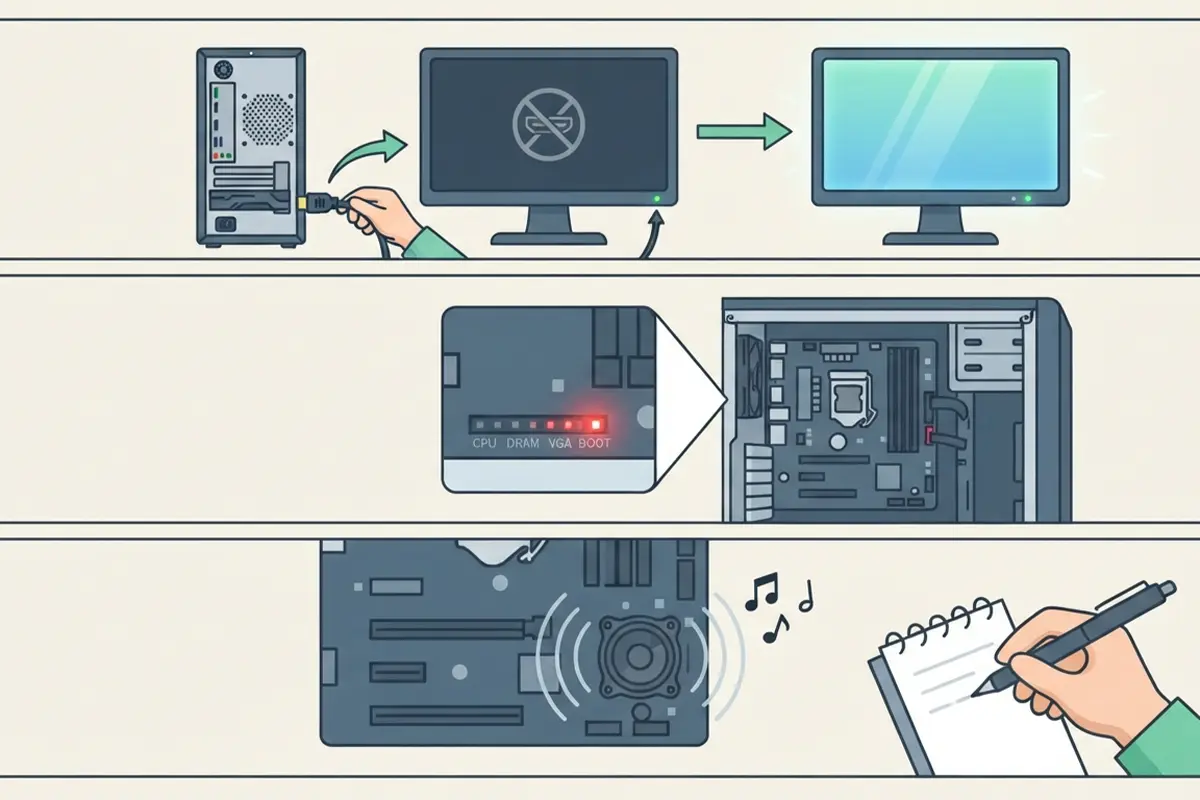
- Step 1: Confirm the monitor is on, set to the correct input, and connected to the right port. If a dedicated graphics card is installed, the cable must run to the GPU, not the motherboard’s video output.
- Step 2: Check the case for any debug lights or an LED display near the motherboard’s edge. Many boards label these CPU, DRAM, VGA, and BOOT, and the lit segment points directly to the problem area.
- Step 3: Listen for beep codes during startup. A pattern of beeps from the motherboard speaker often maps to a specific error in the manufacturer’s manual, so it is worth writing the pattern down before moving forward.
Step 4 to 6: Reseat the Memory
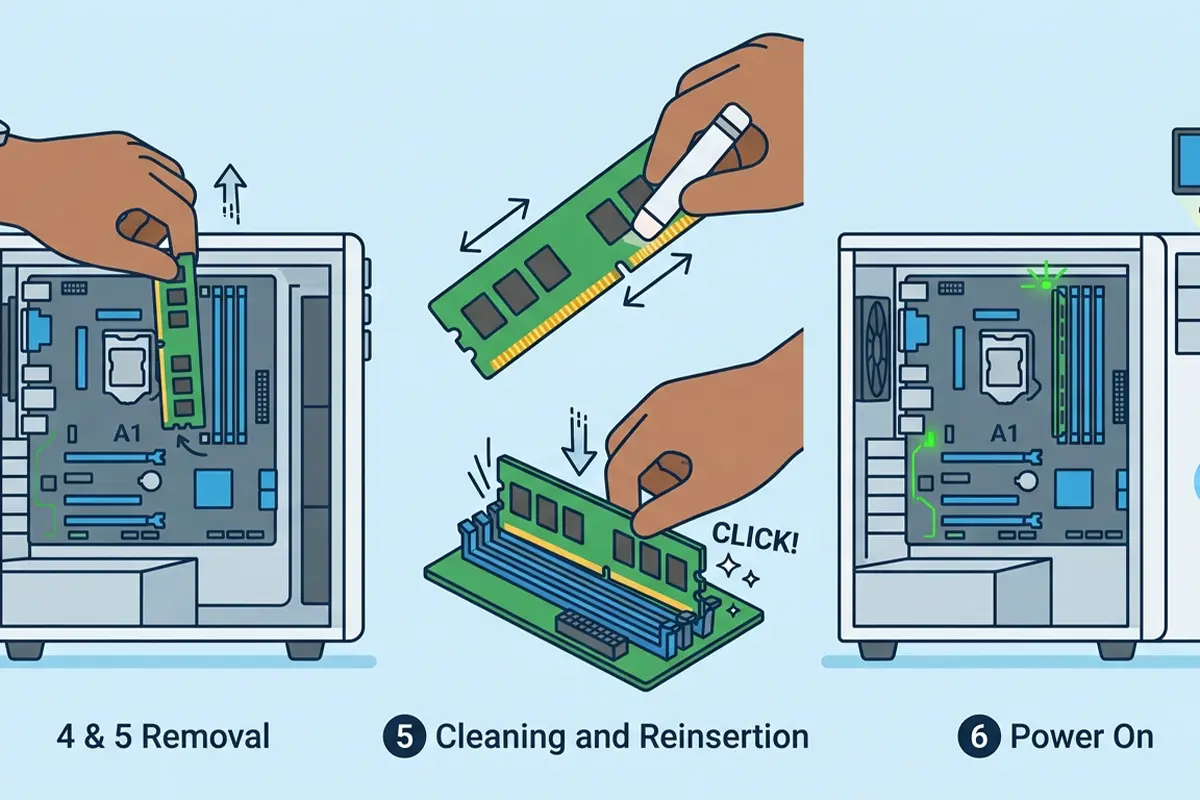
- Step 4: With the PC unplugged, open the side panel and locate the RAM slots. Unclip each memory stick and remove it fully.
- Step 5: Gently clean the gold contacts on each stick with a soft eraser or lint-free cloth, then reinsert one stick at a time into the slot closest to the CPU, pressing firmly until the clips lock.
- Step 6: Power on the system with just that single stick installed. If it posts, add the remaining sticks back one at a time to identify a possible bad module or slot.
Step 7 to 8: Reseat the Graphics Card and Power Cables
- Step 7: Unclip and remove the graphics card, then reinsert it firmly into the PCIe slot until it clicks into place. Reconnect any PCIe power cables directly to the card, making sure each connector is fully seated.
- Step 8: Check the 24-pin motherboard connector and the 4-pin or 8-pin CPU power connector near the top of the board. These are easy to leave slightly unseated during a build and are a frequent cause of a system that powers on but never posts.
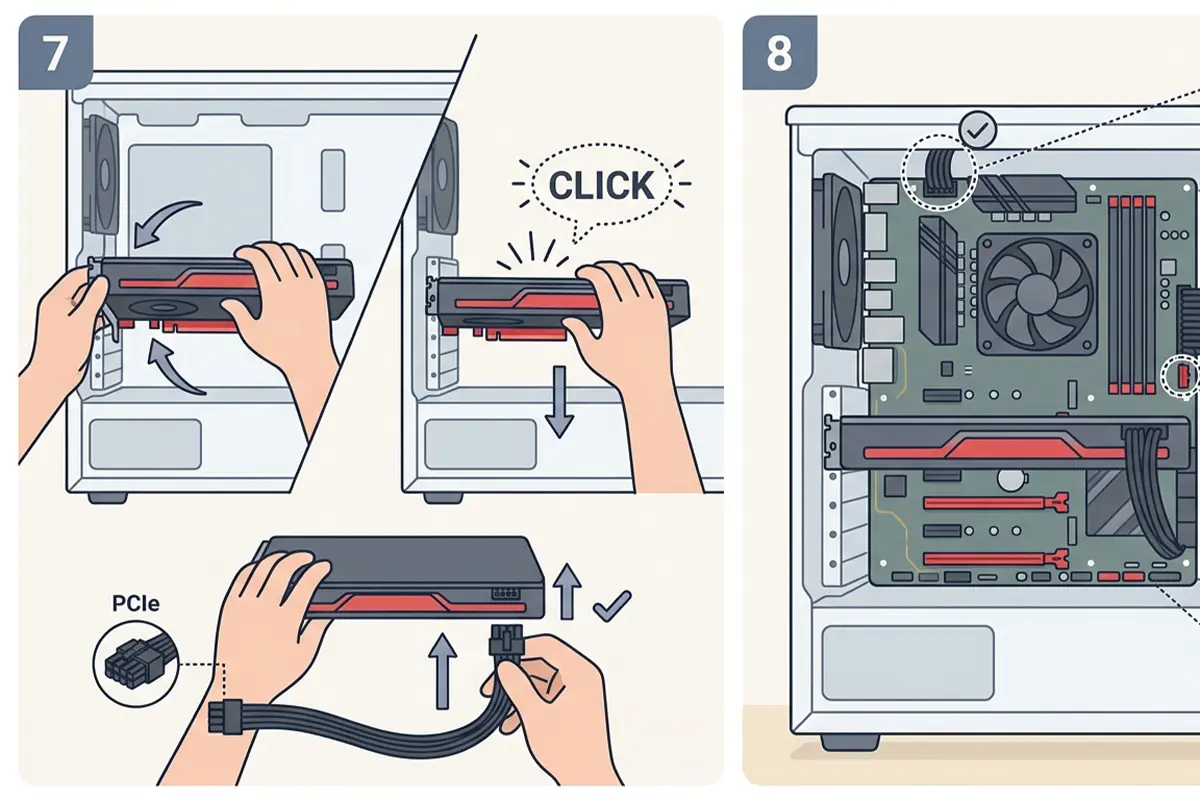
Tip: A card that feels seated can still be slightly tilted. Look at it from the side; it should sit perfectly level and parallel to the slot.
Step 9: Reset the CMOS
- Step 9: Locate the small, round CMOS battery on the motherboard, remove it for about five minutes, and reinsert it. Alternatively, use the motherboard’s CMOS reset jumper or button if one is present. This clears any corrupted BIOS settings or an overclock that is preventing boot.
Step 10: Strip Down to Bare Essentials
- Step 10: Disconnect everything except the CPU, one stick of RAM, the graphics card, and the power supply. Front panel USB headers, extra drives, and case fans can all be reconnected later. If the system posts in this minimal state, reintroduce components one at a time to find the culprit.
Common Problems and Fixes
- PC still will not post after reseating RAM and GPU: Try each RAM stick individually in different slots, and test the graphics card in a different PCIe slot if the motherboard has one, since a single failed slot can cause this exact symptom.
- Fans spin but there are no beeps and no debug lights at all: This usually points to the power supply not delivering stable power. Testing with a different known-good power supply, if one is available, quickly confirms or rules this out.
- System posts only with the case open, but not with the panel closed: This typically means a cable or component is being pressed against something when the panel closes, so double-check cable routing and make sure nothing sits under pressure near the motherboard.
- PC posted once after a CMOS reset, then stopped posting again: This points toward a failing CMOS battery. Replacing it with a fresh CR2032 coin cell usually resolves recurring resets.
- New build never posts, even on the first power-on: Double-check that the CPU power connector is plugged in, since this is the single most overlooked cable on a fresh build and produces exactly this symptom.
Frequently Asked Questions
What does it mean when a PC does not POST?
POST stands for Power-On Self-Test, the check a motherboard runs before handing control to the operating system. When a PC does not post, it means this test never completes, so no video signal reaches the monitor and Windows never begins to load.
Is a PC not posting the same as a black screen in Windows?
No. A black screen inside Windows happens after the operating system has already loaded, while a no-post issue happens before Windows is ever reached. Fans spinning with zero video output at any point, including the motherboard logo screen, is the clearest sign of a no-post situation.
Can bad RAM cause a PC to not post at all?
Yes. Faulty, incompatible, or simply unseated RAM is one of the most frequent causes of a no-post condition, since the system cannot complete its startup checks without working memory.
Why do the fans spin but there is still no display?
Fans spinning only confirm the power supply is delivering some power. The motherboard, CPU, RAM, or graphics card can still fail the startup checks, which stops any video signal from being generated.
How do motherboard beep codes help diagnose a no-post issue?
Each beep pattern corresponds to a specific failure, such as missing memory or a graphics card issue, based on the motherboard manufacturer’s documentation. Counting the beeps and checking them against the manual narrows the cause significantly.
Does resetting the CMOS battery fix a PC that will not post?
It often does, particularly after a recent overclock or a BIOS setting change. Removing the CMOS battery for a few minutes clears the stored settings and returns the BIOS to its default state.
Should the graphics card be removed to test posting?
Yes, if the CPU has integrated graphics. Removing the dedicated graphics card and connecting the monitor to the motherboard’s video output isolates whether the GPU itself is the cause of the no-post issue.
How long should a CMOS reset take?
Leaving the CMOS battery out for about five minutes is generally enough to fully discharge stored settings before reinserting it and attempting to boot again.
When is a PC not posting a sign of a dead motherboard?
If reseating RAM and the graphics card, checking all power connectors, and resetting the CMOS all fail to produce a post, and testing with a different known-good power supply does not help either, the motherboard itself becomes the likely suspect. At that point, professional diagnosis or a motherboard swap is usually the next step.
Is it safe to keep troubleshooting a no-post PC without professional help?
Reseating components, cleaning contacts, and resetting the CMOS are all safe steps for most PC owners. If those steps do not resolve the issue and the system shows signs of physical damage, a burning smell, or repeated power supply failures, it is worth stopping and consulting a professional technician rather than risking further damage.
