
A monitor has no signal message usually points to a broken connection between the display and the computer, not a dead screen. This guide walks through every likely cause, from a loose cable to a failing graphics card, in the order that actually gets a screen back on fastest.
Key Takeaways
- Most no signal errors trace back to a loose cable, wrong input source, or a monitor that fell asleep and did not wake up.
- Checking the physical connection and input selection solves the problem in a large share of cases before any hardware needs to be touched.
- A GPU that has shifted in its slot or lost power from the PSU cables is one of the most common hardware causes on desktop PCs.
- Testing with a second cable, port, or monitor quickly narrows down whether the fault sits with the display, the cable, or the computer itself.
- Persistent no signal errors after basic checks often point to a graphics card, motherboard, or power delivery issue that needs deeper diagnosis.
Before You Start
A few of the steps below involve opening a desktop case or reseating a cable inside it, so a short prep routine keeps things safe.
- Power off the PC completely and unplug it from the wall outlet before touching any internal component.
- Ground out static electricity by touching a bare metal part of the case, or wear an anti-static wrist strap if one is available.
- Let the machine sit for a minute after unplugging so capacitors can discharge and internal parts cool down.
- Keep track of which cable came from which port, since some troubleshooting steps involve swapping connections back and forth.
If the case has never been opened before, or the no signal issue shows up alongside burning smells, visible scorch marks, or a bulging capacitor, stop and hand the machine to a qualified repair technician instead of continuing. Opening a desktop or laptop case may also void any remaining manufacturer warranty, so check that first if the device is still covered.
Common Causes of a No Signal Monitor
Before diving into fixes, it helps to understand what typically causes a monitor has no signal error in the first place.
Loose or Damaged Cables
HDMI, DisplayPort, and USB-C cables can work loose over time, especially if a desk gets bumped or a laptop dock gets unplugged often. A cable that looks fully seated is not always making a clean electrical connection.
Wrong Input Source Selected
Many monitors have more than one input, and it is easy for the display to be set to HDMI 2 while the computer is plugged into DisplayPort. This alone accounts for a surprising number of no signal calls.
GPU Seating or Power Issues
On desktop PCs, a graphics card that has shifted slightly in its PCIe slot, or one missing a PCIe power connector, will often produce no video output at all even though the fans spin and the PC otherwise boots.
Monitor Sleep or Power Save Glitches
Sometimes a monitor gets stuck in a low-power state and fails to wake properly when the system resumes from sleep. This shows up as a no signal message even though the PC itself is running fine.
Display Driver or Boot Failures
A corrupted graphics driver, a failed Windows update, or a motherboard that is not completing POST can all block the video signal from ever reaching the monitor.
Fixing a Monitor with No Signal, Step by Step
Work through these steps in order. Most people find that the fix shows up in the first few steps, well before any hardware needs to come out of the case.
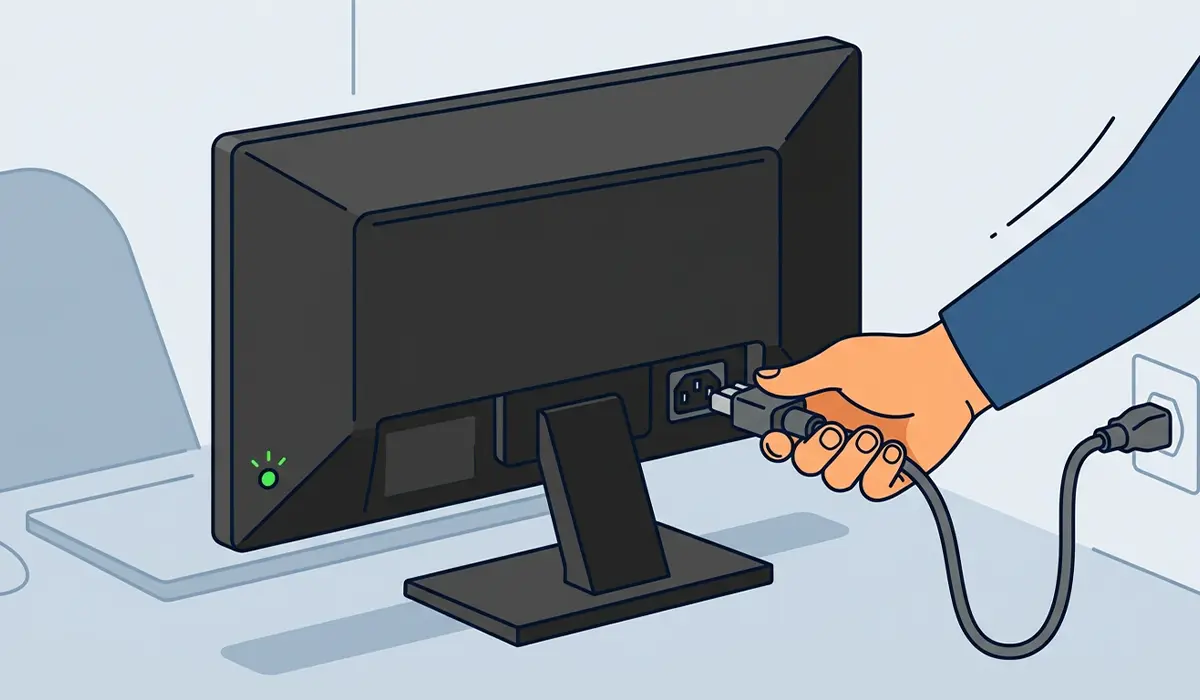
- Step 1: Confirm the monitor is receiving power. Check that the power light is on and that the power cable is firmly seated at both the wall outlet and the back of the monitor.
- Step 2: Check the video cable at both ends. Unplug the HDMI, DisplayPort, or USB-C cable and reseat it firmly at the monitor and at the computer or graphics card.
- Step 3: Cycle through the monitor’s input sources using its on-screen menu buttons. Confirm the display is set to the same port the video cable is actually plugged into.
- Step 4: Swap the cable for a known working one. A cable that looks fine can still have a broken internal wire, and this rules that out fast.
- Step 5: Test a different video port on the graphics card or motherboard, and try a different port on the monitor if it has more than one.
- Step 6: Test the monitor on a different computer, or connect a different monitor to the current PC. This isolates whether the fault is with the display or the system.
- Step 7: Force a display refresh by pressing the Windows key and P, or by putting the PC to sleep and waking it. This can clear a stuck power state on some monitors.
- Step 8: On a desktop PC, power down, unplug, and open the case. Reseat the graphics card fully in its PCIe slot and confirm every PCIe power connector from the power supply is clicked in.
- Step 9: If a dedicated graphics card is installed, plug the monitor cable into the motherboard’s video output instead, if the CPU has integrated graphics. A signal at this port with no card installed points to a failing GPU.
- Step 10: Listen for POST beep codes or check the motherboard’s debug LEDs if the system has them. A failure to complete POST will block video output regardless of what the monitor is doing.
Tip: Keep the video cable swap and the port swap as separate tests. Changing both at once makes it harder to tell which one actually fixed the problem.
Common Problems and Fixes
Signal Returns Then Drops Again
This pattern usually points to a marginal cable or a loose connector rather than a dead component. Replacing the cable with a fresh one and securing it with any screw-lock connectors on DisplayPort cables typically resolves it.
No Signal Only After Sleep or Restart
This is often a monitor firmware or power-save quirk rather than a hardware fault. Updating the monitor’s firmware if the manufacturer offers it, or disabling deep sleep states in the operating system’s power settings, tends to clear it up.
No Signal Even on the Motherboard Port
If switching to onboard graphics still produces no signal, the issue is more likely tied to the motherboard, RAM seating, or power supply rather than the graphics card. Reseating the RAM sticks and confirming the CPU power connector is fully seated is the next reasonable step.
PC Boots and Fans Spin, But Screen Stays Black
Fans spinning does not confirm the system is actually completing its boot sequence. Clearing the CMOS by following the motherboard manufacturer’s reset procedure can resolve a stuck configuration that is silently blocking video output.
Laptop Screen Is Blank But an External Monitor Works
This points toward the laptop’s internal display panel or its video cable ribbon rather than the graphics chip itself, since an external monitor pulling a signal confirms the GPU is functioning.
Frequently Asked Questions
Why does a monitor say no signal when the PC is on?
It means the monitor is not receiving a video signal through its selected input, which usually comes down to a loose cable, the wrong input being selected, or the graphics card not outputting video at all.
Can a bad cable cause a no signal error?
Yes, a damaged or poorly seated HDMI, DisplayPort, or USB-C cable is one of the most common causes and is worth ruling out before assuming a hardware failure.
Why does the monitor work on one PC but not another?
This points to the second computer as the source of the problem, often a graphics card that has come loose, a driver issue, or the video port not being enabled in the system’s settings.
Is a no signal error always a graphics card problem?
No, it is frequently caused by something simpler, such as the wrong input source, a loose cable, or the monitor being stuck in a low-power state.
Why does the monitor show no signal only after waking from sleep?
This is usually a power-save handshake issue between the monitor and the graphics card, and it can often be fixed with a monitor firmware update or by adjusting sleep settings.
Does reseating the graphics card actually help with no signal errors?
Yes, a graphics card that has shifted slightly in its PCIe slot can lose its video output entirely, and reseating it firmly often restores the signal.
What does it mean if the motherboard’s video port works but the graphics card port does not?
It usually indicates the graphics card itself is faulty, improperly seated, or not receiving power from the PCIe power connectors.
Can a failing power supply cause a no signal error?
Yes, insufficient or unstable power to the graphics card can prevent it from outputting a signal even though the rest of the system appears to boot normally.
Should the monitor be tested on another computer before assuming it is broken?
Yes, testing the monitor on a different system is one of the fastest ways to confirm whether the display itself or the original computer is causing the no signal error.
